.png?width=239&height=70&name=UnbiasedPro__Logotype__Primary_RGB_HR%20(3).png)
When clients can book their own appointments (rather than wait for an unspecified callback) no-show rates drop by up to 60%.
By adding a scheduling link to your Unbiased profile, new leads can instantly choose a time that works for you both.
How do I create an appointment scheduling link?
You have a few simple options:
-
Already using a scheduling tool?
If you use software such as Calendly or HubSpot, simply copy your booking URL and paste it into your Unbiased profile. Step-by-step instructions are provided below. -
Using Outlook or Microsoft 365?
You can create a booking link in seconds using Microsoft Bookings. This syncs directly with your Outlook calendar and allows clients to book available slots automatically.
Follow the setup guide: How to create custom booking windows with Microsoft Bookings. - Using Google Workspace (Gmail or Google Calendar)?
You can create a booking page directly from Google Calendar.
Google Calendar allows you to set available appointment slots, automatically prevent double-booking, and share a public booking link with clients.
Once created, simply copy your Google Calendar booking link and add it to your Unbiased profile. Follow the setup guide here: How to create an appointment booking link using Google Calendar. -
Managing multiple calendars?
Tools like Microsoft Bookings and other scheduling platforms allow you to connect more than one calendar to a single booking link.
If you’d like to add a scheduling link but aren’t sure which option is best for you, visit our related help article or contact us and we’ll help you find the right solution.
How to add your scheduling link to Unbiased
- Open your Profiles from the main menu
- Select your Main Profile where you want to add a scheduling link (note that custom profiles will need to be updated individually).
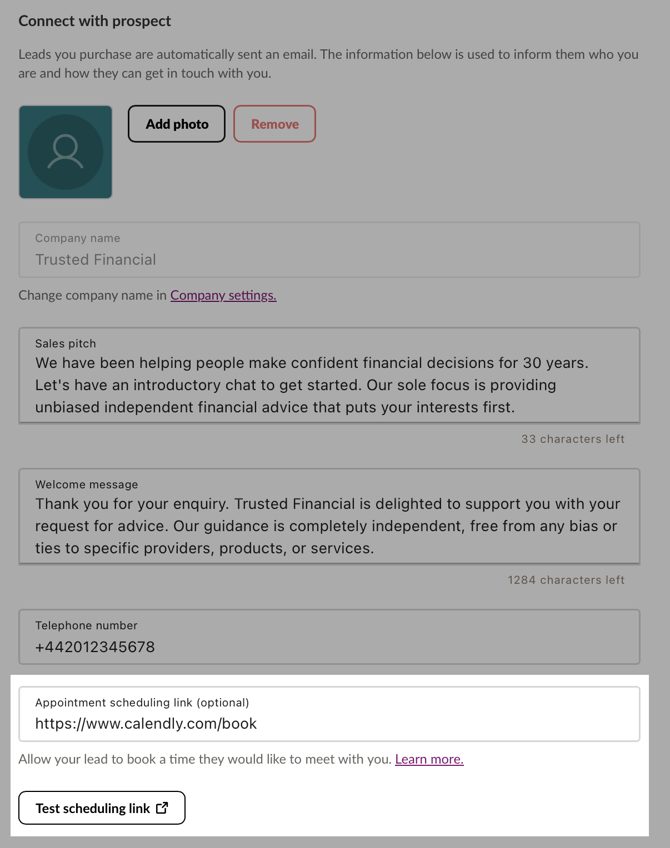
- Select the 'Details' tab and scroll down to the 'Connect with prospect' section (see image below)
- Click on the 'Appointment Scheduling Link' field and enter your scheduling link
- Click 'Test Scheduling Link' to double-check it works correctly
- Save your changes at the bottom of the page.
Scheduling Links: Do's and Don'ts
Making it easy to book time with you matters. Every extra step increases the chance a lead drops off.
✅ Do-
Use a direct link to your booking page, for example: https://calendly.com/your-name/schedule.
-
Test the link to make sure it works correctly.
-
Link to pages that require users to create an account.
-
Link to forms that ask for another enquiry or additional information.
-
Use broken or test links.
-
Link to pages that aren’t specifically for booking appointments.
What will my lead see?
When a scheduling link is added to your profile, it appears as a large, clearly visible button in the lead introduction email. This button is typically clicked by a high proportion of users, making it one of the most effective ways to secure first contact.
Need help or advice?
If you’d like guidance on optimising your profile or booking setup, our Client Services Team can carry out an account review to help you get the most from your subscription.
📧 Email: pro@unbiased.co.uk
📞 Call: 0800 011 9671
🕘 Monday to Friday, 9:30am–5:00pm