.png?width=239&height=70&name=UnbiasedPro__Logotype__Primary_RGB_HR%20(3).png)
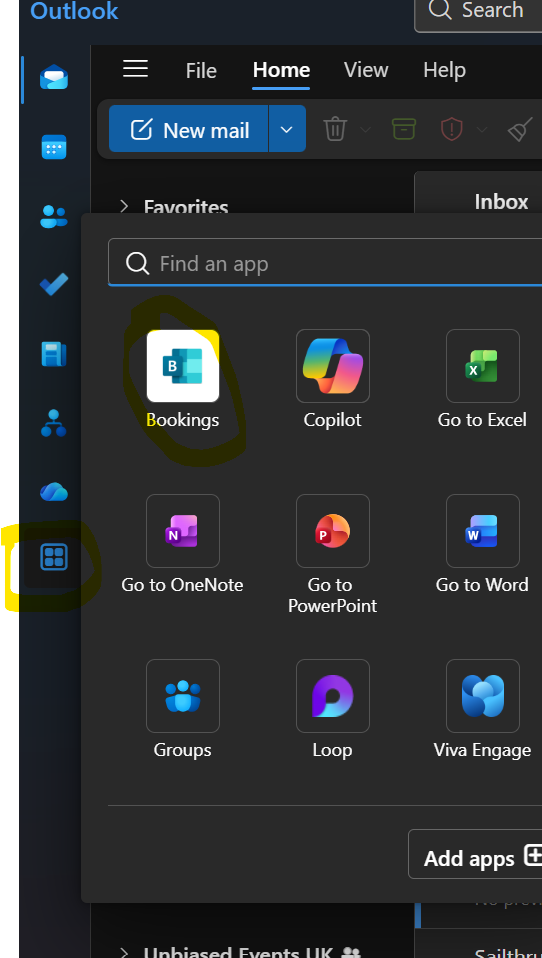
1. In Outlook, search for “Bookings” in the navigation bar and click on the associated app.
 .
.
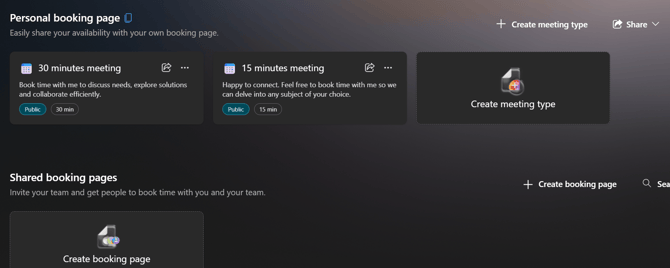
2. The below display should appear:
This will allow you to create a 15 or 30-minute appointment linked to your personal calendar (or generate a booking link that connects to multiple team calendars).
3. You can customise your settings to:
• Set working hours
• Add a buffer time between meetings
• Write a custom meeting message
4. Once your setup is complete, click “Share” and copy your booking link.
5. To add the link to your Unbiased profile:
• Go to Profiles from the main menu
• Select “Manage Profile” for the profile you want to update (custom profiles must be updated individually)
• Scroll to “Contact details” and paste your scheduling link
• Click Save at the bottom of the page.
For advice and support with your subscription, please contact your Account Manager at pro@unbiased.co.uk.